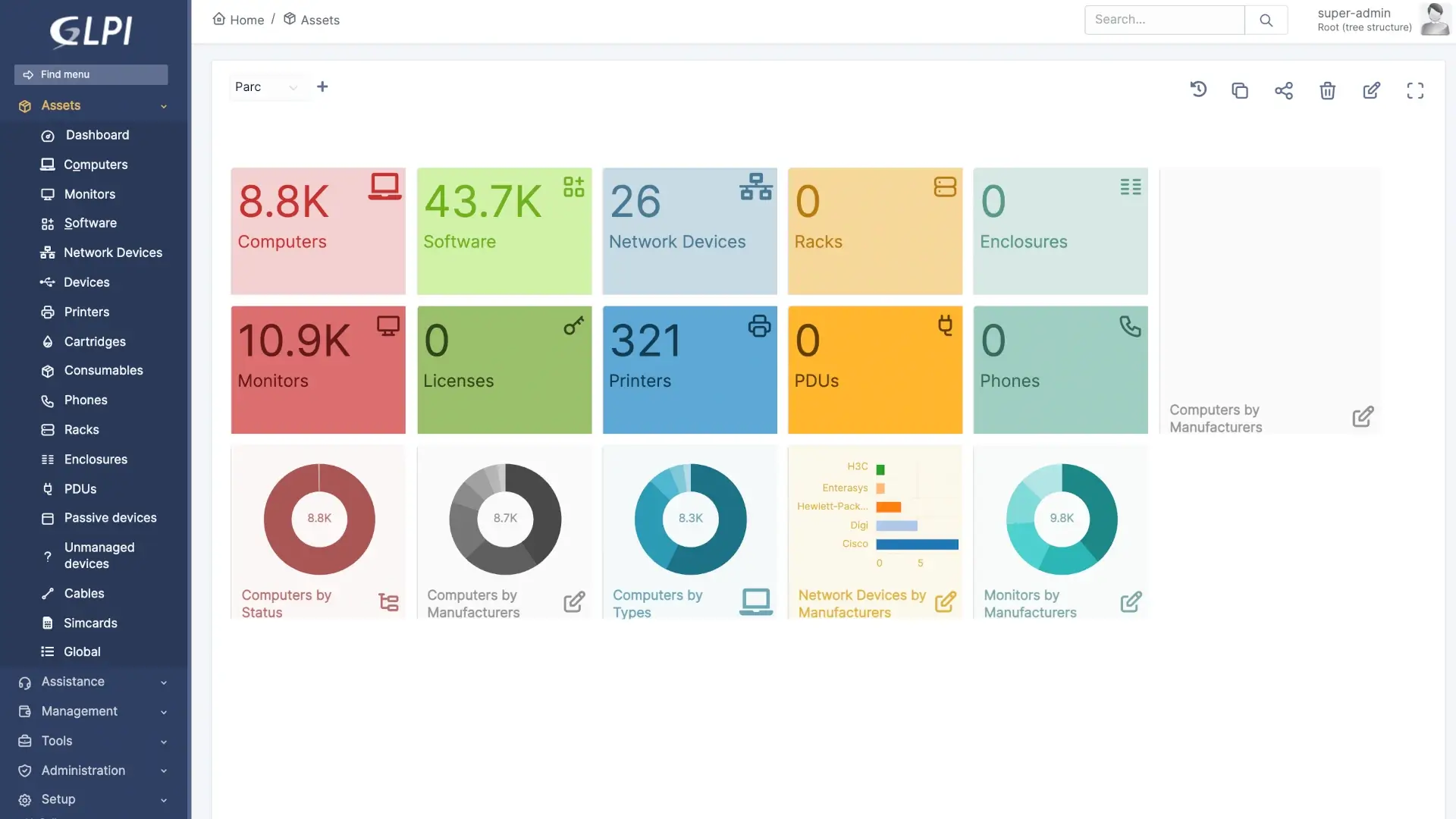
Setting Up GLPI with Docker: A Step-by-Step Guide
In this guide, we'll walk you through setting up GLPI (Gestionnaire Libre de Parc Informatique) using Docker. This powerful tool allows you to manage your IT assets and support requests efficiently. We'll cover everything from the initial setup to configuring email notifications and cron jobs.
Prerequisites
Before you begin, ensure you have Docker and Docker Compose installed on your system. If you haven’t installed them yet, refer to the official Docker documentation for installation instructions.
Step 1: Set Up the Docker Environment
Create a directory for GLPI:
mkdir glpiPull the GLPI Docker image:
docker pull diouxx/glpiCreate a
docker-compose.ymlfile:touch docker-compose.yml
Step 2: Configure docker-compose.yml
Open the docker-compose.yml file in a text editor and add the following configuration:
version: "3.2"

services:
  # MariaDB Container
  mariadb:
    image: mariadb:10.7
    container_name: mariadb
    hostname: mariadb
    volumes:
      - /var/lib/mysql:/var/lib/mysql
    env_file:
      - .mariadb.env
    restart: always

  # GLPI Container
  glpi:
    image: diouxx/glpi
    container_name: glpi
    hostname: glpi
    ports:
      - "3001:80"
    volumes:
      - /etc/timezone:/etc/timezone:ro
      - /etc/localtime:/etc/localtime:ro
      - /var/www/html/glpi/:/var/www/html/glpi
    environment:
      - TIMEZONE=America/Los_Angeles
    restart: always
Step 3: Create the Environment Variables File
Create a .mariadb.env file for MariaDB settings:
sudo nano .mariadb.env
Add the following configuration, replacing YOURPASSWORDHERE with your chosen password:
MARIADB_ROOT_PASSWORD=YOURPASSWORDHERE
MARIADB_DATABASE=glpidb
MARIADB_USER=glpidatabseuser
MARIADB_PASSWORD=YOURPASSWORDHERE
Step 4: Start the Containers
Run the following command to start the Docker containers in detached mode:
sudo docker-compose up -dStep 5: Configure MariaDB Timezone
Access the MariaDB container:
sudo docker exec -it mariadb shSwitch to the root user:
su rootRun the following commands to enable timezone support:
mysql_tzinfo_to_sql /usr/share/zoneinfo | mysql -p -u root mysql
mysql -u root -p
GRANT SELECT ON mysql.time_zone_name TO 'glpidatabseuser'@'%';
flush privileges;
exit
Restart the containers:
sudo docker-compose restartEnable timezone in GLPI:
sudo docker exec -it glpi sh
su root
php /var/www/html/glpi/bin/console glpi:database:enable_timezones
Email Settings
To allow users to create tickets via email, follow these steps:
- Create a dedicated email account for support tickets (e.g.,
[email protected]) using Google Workspace. - Log in to your new email account and adjust the settings:
- Allow less secure apps.
- Enable IMAP.
- Set up a receiver in GLPI:
Go to Setup > Receivers.
Click the plus button and enter:
Name: [email protected]
Server: imap.gmail.com
Connection options: IMAP, SSL, NO-TLS, NO-VALIDATE-CERT.
Port: 993
Login: [email protected]
Password: xxxxxx
Click + Add button.
- Test the settings by sending an email to
[email protected]and checking the inbox. Then click the Get email tickets now button in GLPI.
Email Notifications
To configure automatic email notifications for users:
- Go to Setup > Notifications and enable the following options:
- Enable followup.
- Enable followups via email.
Configure email settings:
Administrator email: your email address Administrator name: your name From email: [email protected] From name: Helpdesk Reply to address: [email protected] Reply to name: Helpdesk No-Reply address: [email protected] No-Reply name: Do not reply Way of sending emails: SMTP+SSL Check certificate: No SMTP host: smtp.gmail.com Port: 465 SMTP login: [email protected] SMTP password: xxxxx Click Save.- Test the configuration by sending a test email to the administrator.
Setting Up Cron Jobs
To automate tasks in GLPI, configure cron jobs:
- Log in to GLPI and go to Setup > General. Set the Maximal number of automatic actions (run by CLI).
Access your hosting control panel and configure a new cron job:
Command: php /path_to_your_root_directory/front/cron.php
Interval: */1 * * * *
This configuration runs the cron job every minute, which is useful for testing.
Setting Up OAUTH for O365
To configure OAUTH with Office 365:
- Install the necessary plugin: GLPI OAUTHIMAP Plugin.
- Follow Microsoft’s instructions for app registration: MS OAUTH Guide.
- Set up a shared mailbox and create rules for forwarding emails.