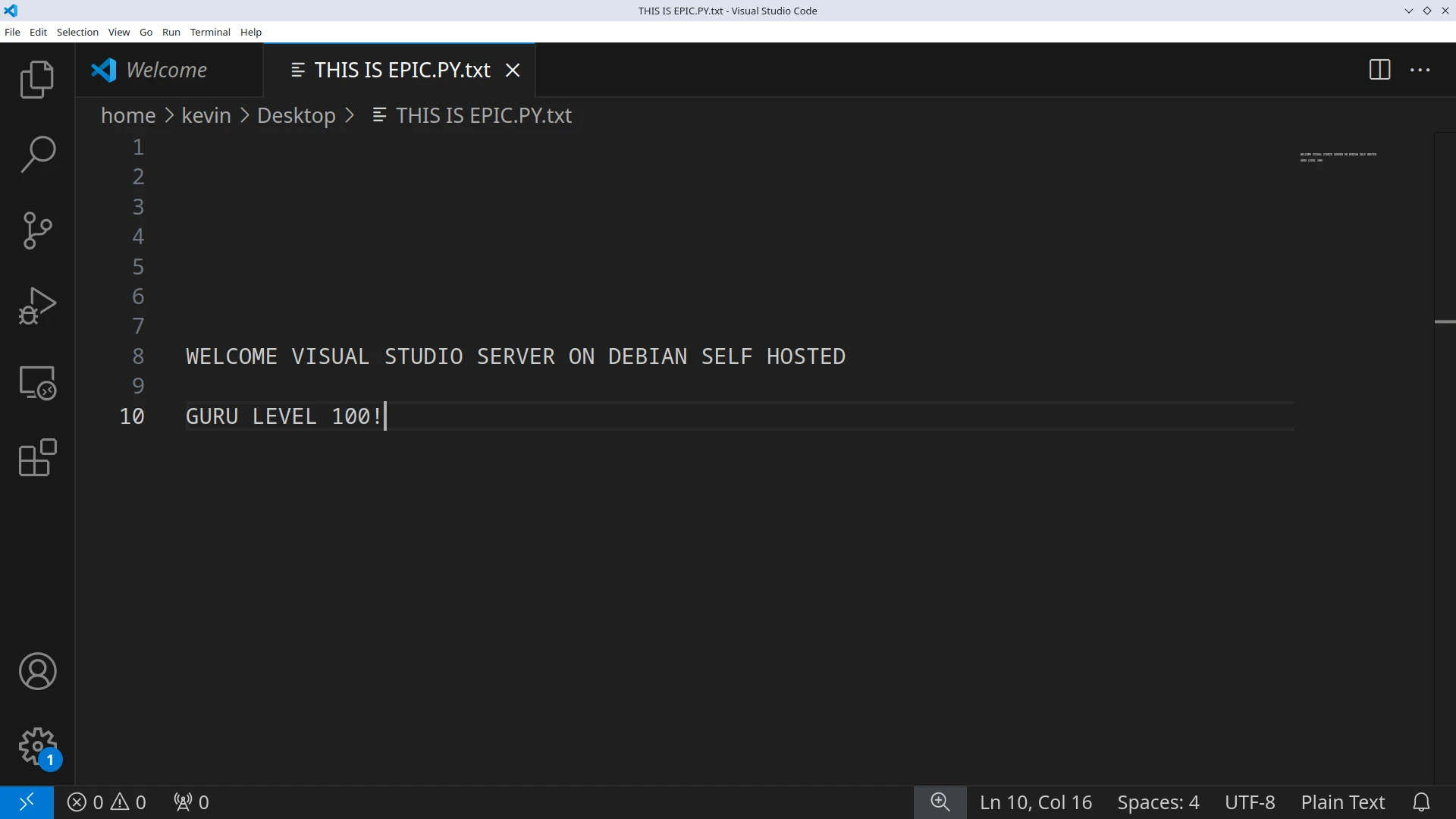
How to Set Up Visual Studio Code Server on Debian
In this tutorial, we'll guide you through setting up Visual Studio Code Server (code-server) on a remote server, enabling you to access your development environment from any device with a browser. Running code-server on a remote server provides consistent access to your code and tools, offloads processing from your local device, and allows for collaboration. By the end of this guide, you will have code-server installed as a service, accessible via SSH and IP, ensuring your environment is always available and easily manageable.
Step 1: Update Your Server
First, ensure your server’s package list is up-to-date:
sudo apt updateStep 2: Install OpenSSH
If OpenSSH is not installed, install it to allow remote access:
sudo apt install openssh-serverEnable and start the SSH service to ensure it is active:
sudo systemctl start ssh
sudo systemctl enable ssh
Step 3: Install code-server
Download and install `code-server` using the install script:
sudo apt install curl
curl -fsSL https://code-server.dev/install.sh | sh
sudo systemctl enable --now code-server@$USER
Step 4: Configure code-server
Once installed, configure `code-server` by editing its config file. Open it with:
nano ~/.config/code-server/config.yamlSet a password (optional) and specify the host and port as shown:
password: "your_password"
bind-addr: 0.0.0.0:8080
Step 5: Create a Systemd Service for code-server
Set up `code-server` to start automatically by creating a systemd service:
sudo nano /etc/systemd/system/code-server.serviceAdd the following configuration:
[Unit]
Description=code-server
After=network.target
[Service]
ExecStart=/usr/bin/code-server --host 0.0.0.0 --port 8080
User=your_username
Restart=always
[Install]
WantedBy=multi-user.target
Step 6: Enable and Start the code-server Service
Enable the service to start on boot, then start it:
sudo systemctl enable code-server
sudo systemctl start code-server
Step 7: Open the Firewall
If you are using a firewall, allow traffic to port 8080 (or the port configured in `config.yaml`):
sudo ufw allow 8080Step 8: Access code-server
Open your web browser and go to:
http://your_server_ip:8080Log in with your password if prompted.
Step 9: Connect with SSH
To access the server via SSH:
ssh your_username@your_server_ipYou can now access and manage `code-server` from a remote location.
Conclusion
Following these steps will have `code-server` installed and running on your server as a service, accessible from any device with a web browser. Refer to Github Repo for more details.